Configuration
This page walks you through setting up Widerrufsfunktion. All settings apply per website. If you run several websites, repeat the steps for each one.
Prerequisite
Administrator rights in Odoo are required for all of the following steps.
Open the settings
- Open Settings and go to the Website section.
- At the top, select the website you want to set up.
- Scroll to the block Withdrawal (cancel a contract).
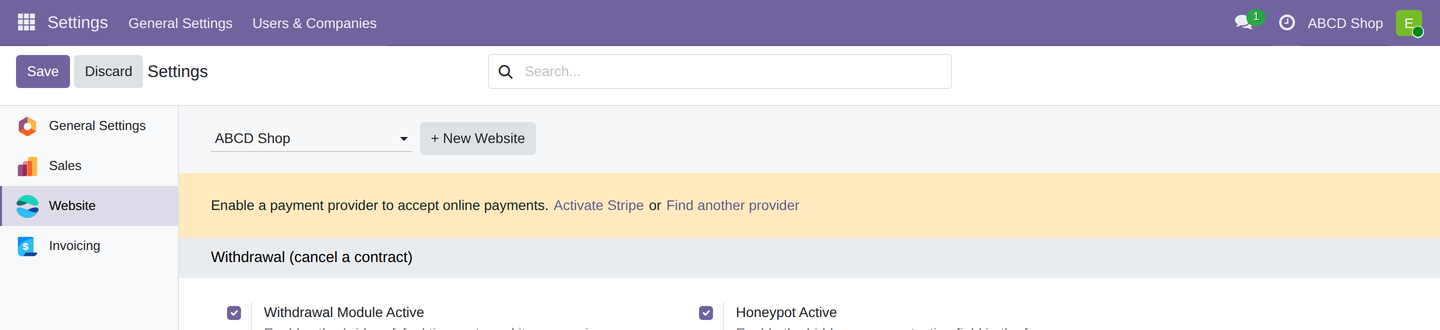
Everything you configure afterwards applies only to the website selected here.
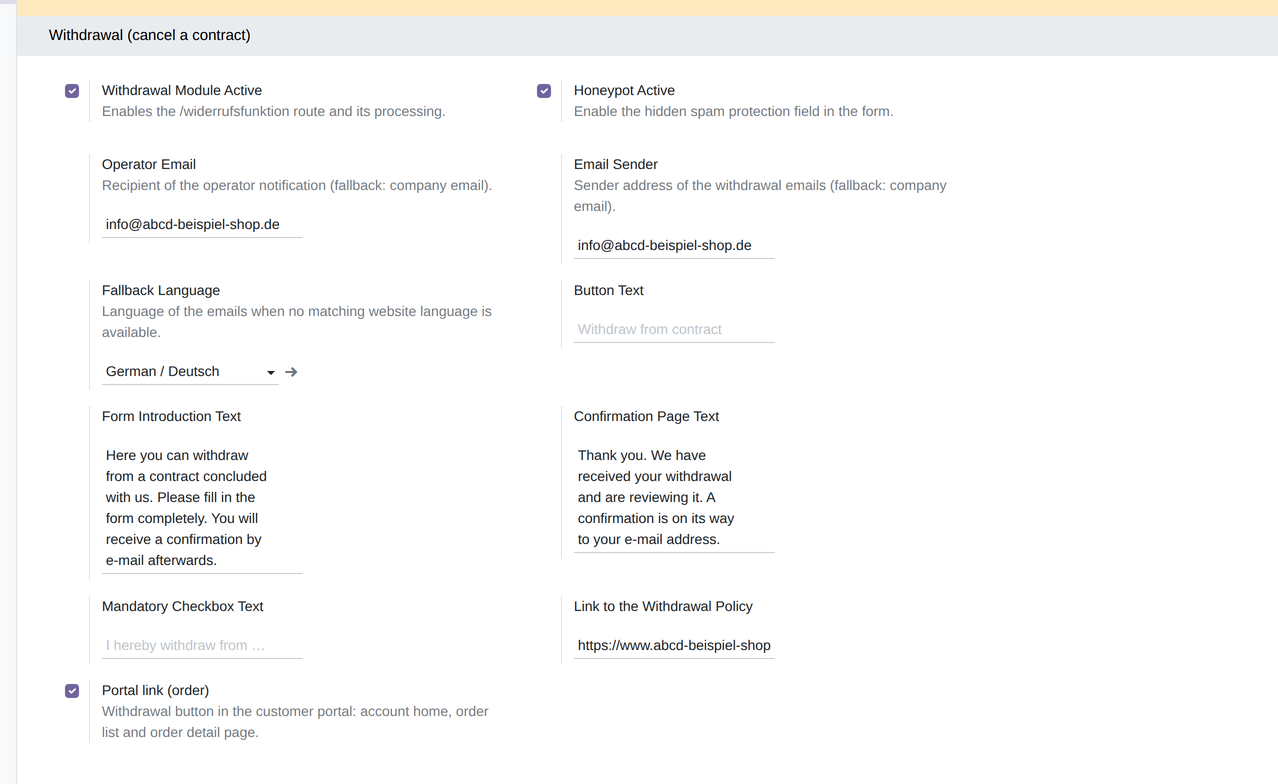
Fields you leave empty show a faint placeholder. For Form Introduction Text,
Confirmation Page Text and Mandatory Checkbox Text that placeholder really is the
text that applies. For Button Text it is not: the placeholder reads
Withdraw from contract, while the button itself reads Submit binding withdrawal. For
Operator Email, Email Sender and Link to the Withdrawal Policy the
placeholders are merely examples.
The settings in detail
| Setting | Effect | Default |
|---|---|---|
| Withdrawal Module Active | Enables the form at /widerrufsfunktion for this website. When off, the page reports "not found". |
on |
| Honeypot Active | No effect — see the note below the table. The hidden field that catches spam submissions is always active. | on |
| Operator Email | Recipient of the notification sent to your company. Empty → the company's email address. | empty |
| Email Sender | Sender address of both withdrawal emails. Empty → the company's email address. | empty |
| Fallback Language | Language of the emails when the language stored with the withdrawal is not installed in your Odoo. | empty |
| Button Text | Custom text for the button in the review step. Empty → Submit binding withdrawal. | empty |
| Form Introduction Text | Text shown above the form. | empty |
| Confirmation Page Text | Text shown on the page after submission. | empty |
| Mandatory Checkbox Text | Text of the mandatory confirmation checkbox. Empty → "I hereby withdraw from the specified contract." | empty |
| Link to the Withdrawal Policy | Address of your withdrawal policy. | empty |
Click Save after each change.
The Honeypot Active switch has no effect
In this version the form's spam trap runs regardless of this switch — even when you turn it off. You do not lose any protection by that; the setting is simply misleading.
The email subject cannot be changed here
Both emails carry the same subject, in the format "Withdrawal <reference> of
<date> | Order <order number>". You cannot adjust it in this settings block, and
it cannot differ per website. Centrally, for all websites, it can be changed — see
Technical reference.
Maintain the texts per language
The button text, the introduction, the confirmation text, and the mandatory checkbox are translatable. Click into the field — a small language code such as EN appears next to it. Clicking it opens a dialog with one field per installed language.
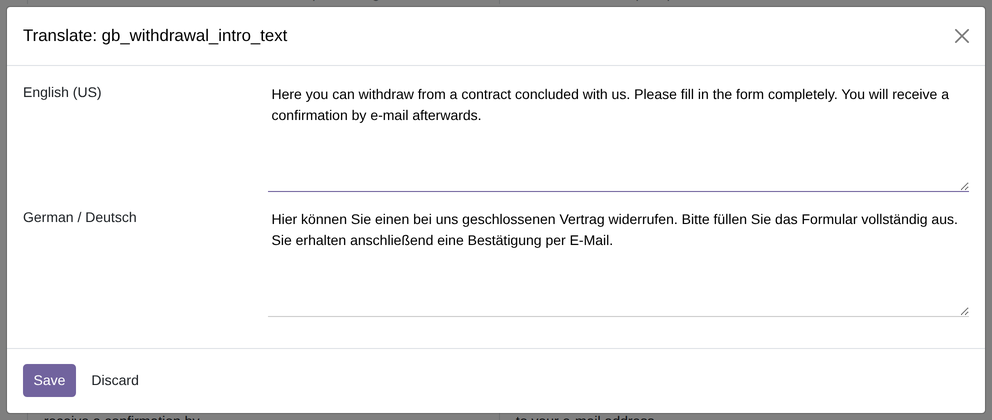
Enter both versions and click Save. That way /widerrufsfunktion shows the German
text and /en/widerrufsfunktion the English one.
Enable the buttons in the customer account
If the extension Widerrufsfunktion Verkauf is installed, one more switch appears in the same settings block:
| Setting | Effect |
|---|---|
| Portal link (order) | Shows the Withdraw from order button in three places in the customer account. |
The three places are:
1. The customer account home page — a dedicated tile leads straight to the form.
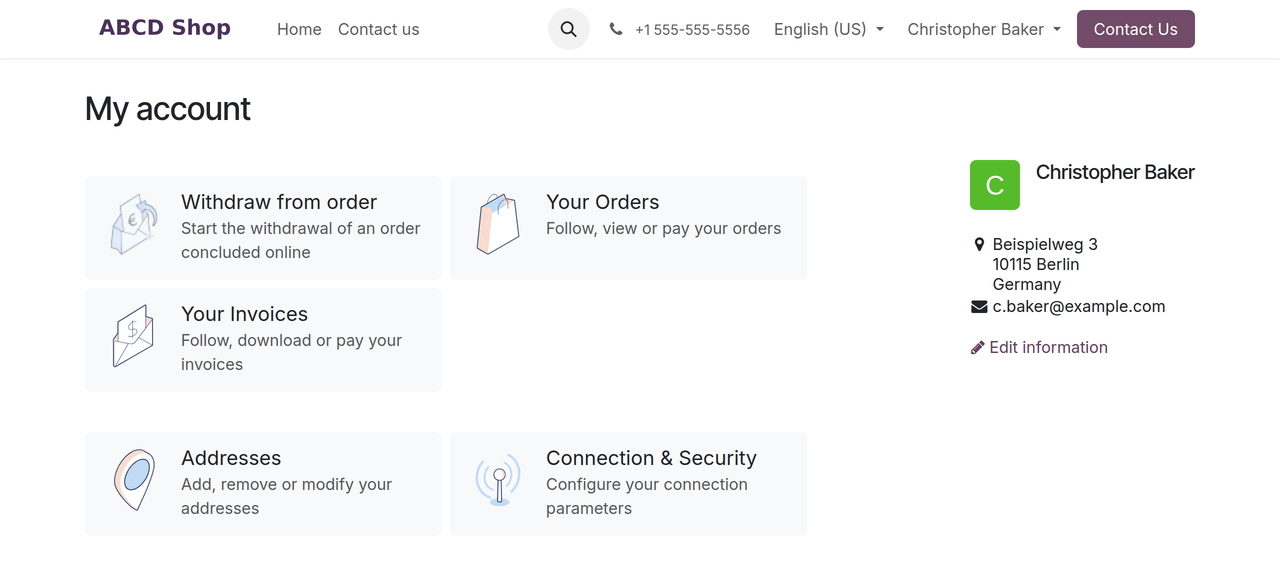
2. The order overview — one button per order, in the Withdrawal column.
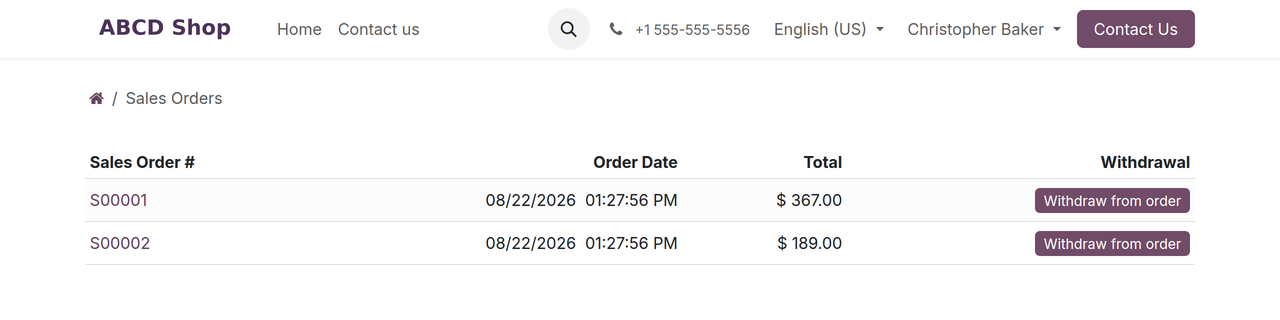
3. The individual order — the button at the top of the order.
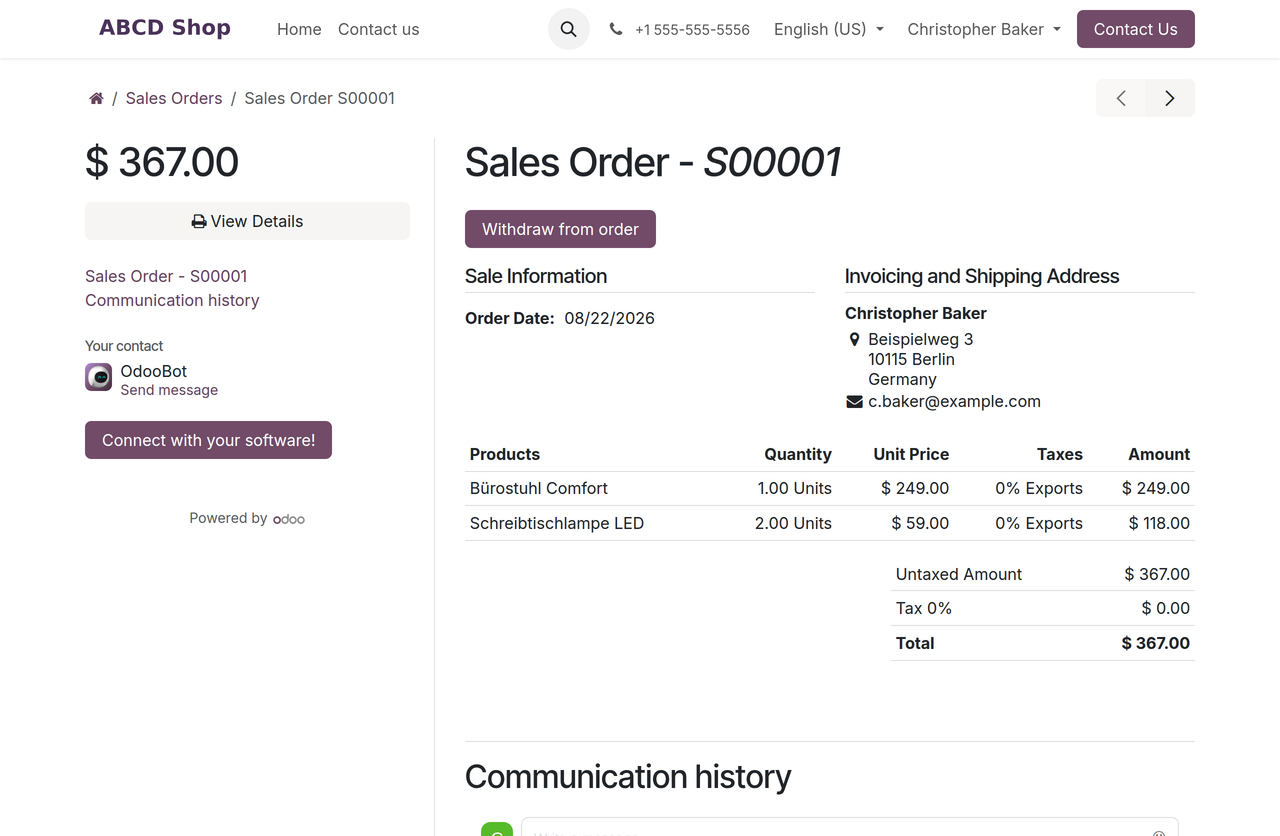
Coming from the order overview or an individual order, the order number is already filled in on the form. For customers who are signed in, so are their name and email address.
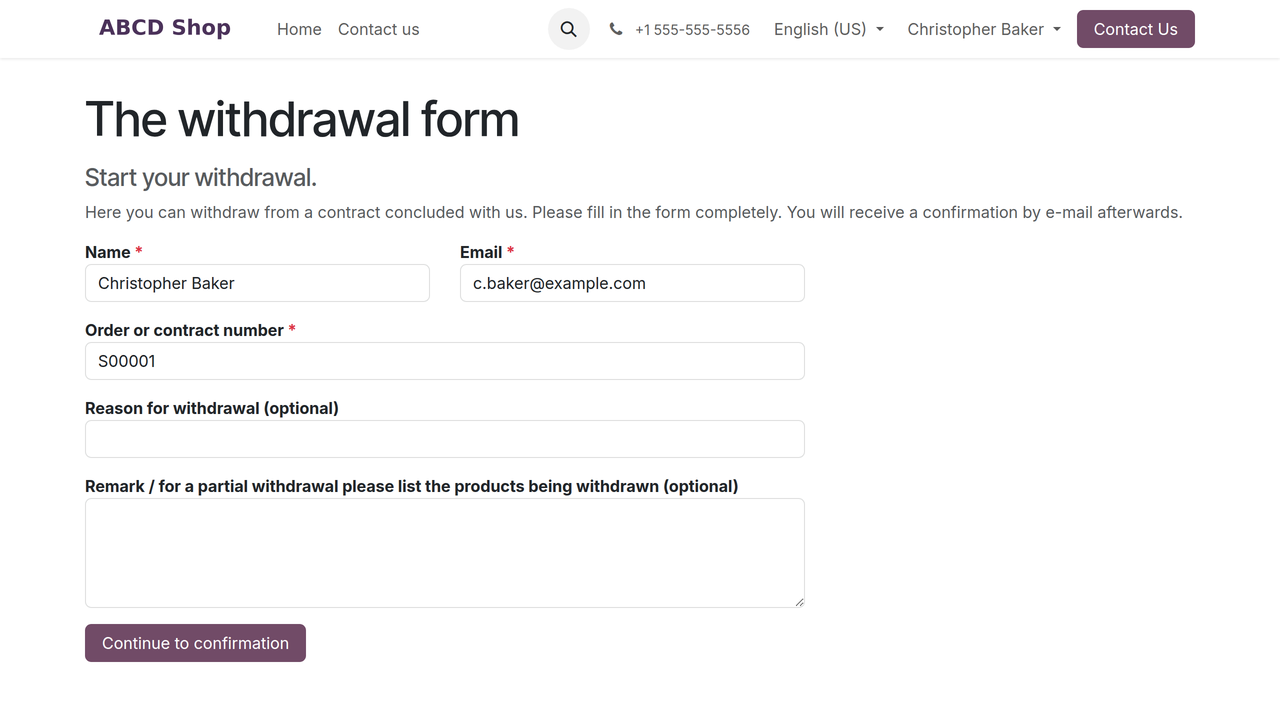
Entry points to the form
The footer button must be created
The module deliberately places no button in your website footer — your layout stays untouched. A linked button to the form in the footer is nevertheless mandatory. We also recommend placing the same button inside your withdrawal policy.
GlobalBases sets up the footer button and the withdrawal note in the order confirmation
and invoice email for you, per project. There is no switch for this in the settings. The
address linked is always /widerrufsfunktion.
Why not simply /widerruf?
In many shops the address /widerruf is already taken by the "right of withdrawal"
information page. The form deliberately sets itself apart and is reachable only at
/widerrufsfunktion — there is no redirect from /widerruf.
Grant permissions
There are two permissions. You assign them under Settings → Users & Companies → Users on the Access Rights tab, in the Withdrawals field. It sits in its own WITHDRAWALS section.
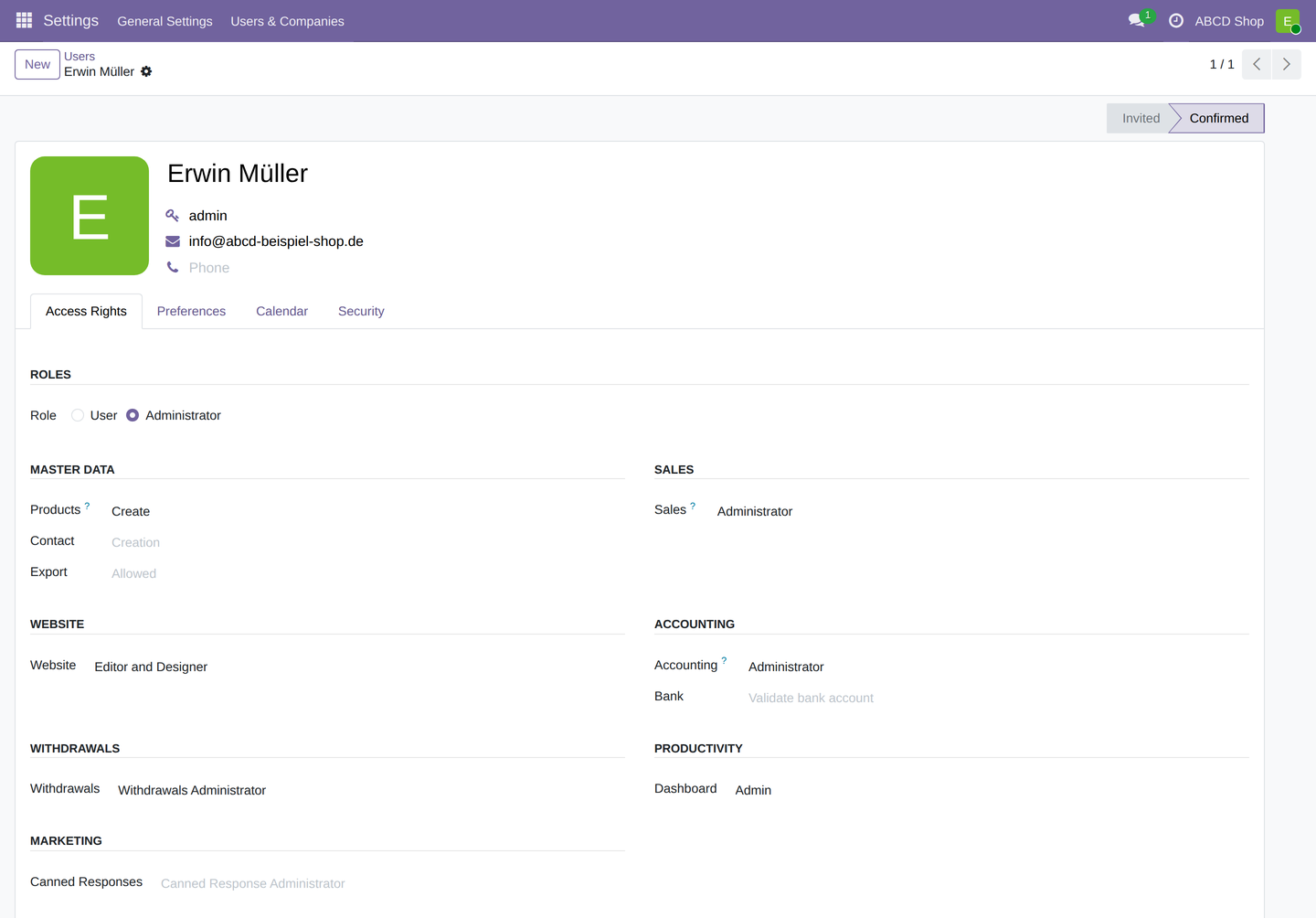
| Permission | Allows |
|---|---|
| Withdrawals User | Read and process withdrawals: status, processing steps, messages. No deletion. |
| Withdrawals Administrator | Additionally: archive and delete cases. |
If the extension Widerrufsfunktion Verkauf is installed, sales users receive the Withdrawals User permission automatically.
Archive instead of delete
Withdrawals are records of evidence. Nothing is ever deleted automatically. Archive the cases you no longer need — the Archived filter in the list brings them back at any time.
Set up several websites
- In the website settings, select the next website at the top.
- Fill in the block Withdrawal (cancel a contract) as described above.
- Maintain the texts for each language.
- Set the Portal link (order) switch if you need it.
- Repeat for every further website.
Next steps
Continue with Daily use. Technical details — data model, form address, email templates and permissions — are covered in Technical reference.