Daily use
This page shows how you process incoming withdrawals: find them, read them, set the status, record the processing steps, and write to the customer.
How a withdrawal comes in
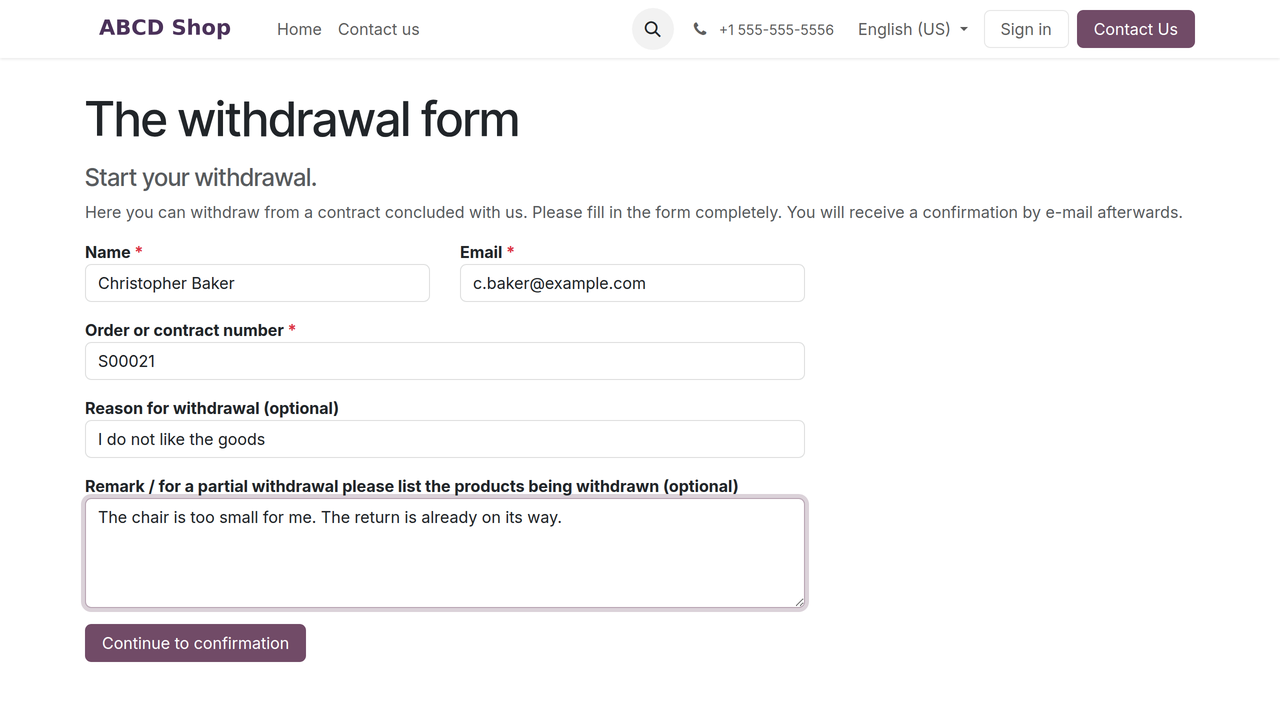
The consumer fills in the form at /widerrufsfunktion on your website, in three steps.
Step 1 — enter the details. Name, email, and the order or contract number are mandatory; reason for withdrawal and remark are optional.
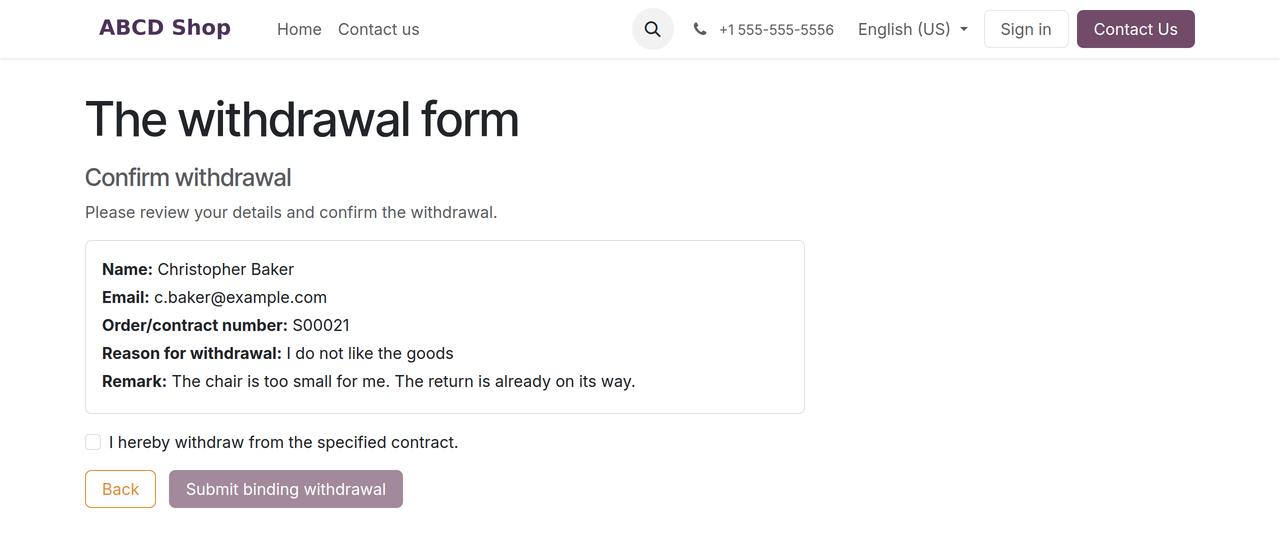
Step 2 — review the details. Every entry is shown once more. The Submit binding withdrawal button is inactive at first.
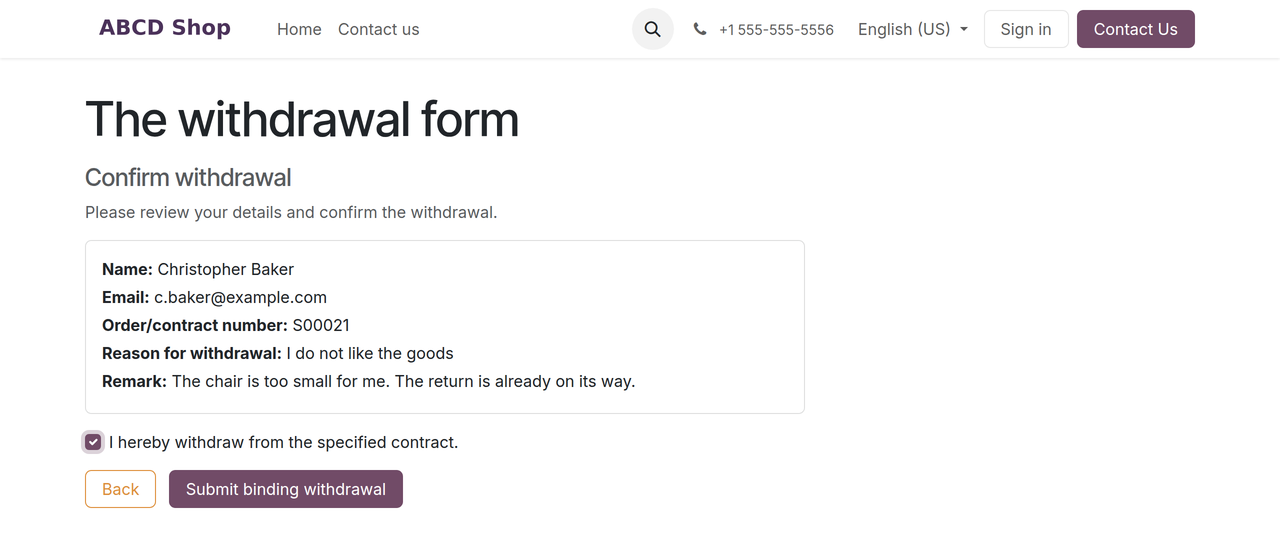
Only once the consumer confirms the mandatory checkbox does the button become active. Back returns them to the input form.
Step 3 — confirmation. The consumer is shown the case number and the time of receipt.
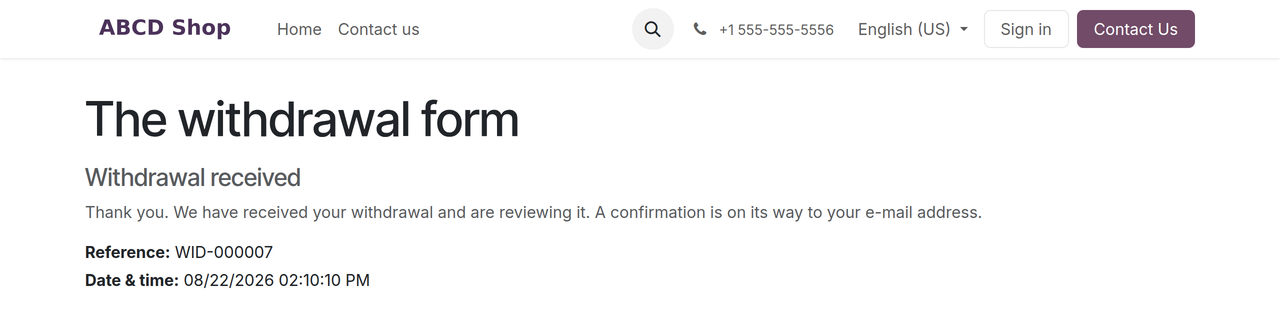
At that moment a withdrawal with the number WID-###### is created in Odoo, and two
confirmation emails go out: one to the consumer, one to your company. Your work starts
here.
Find and open withdrawals
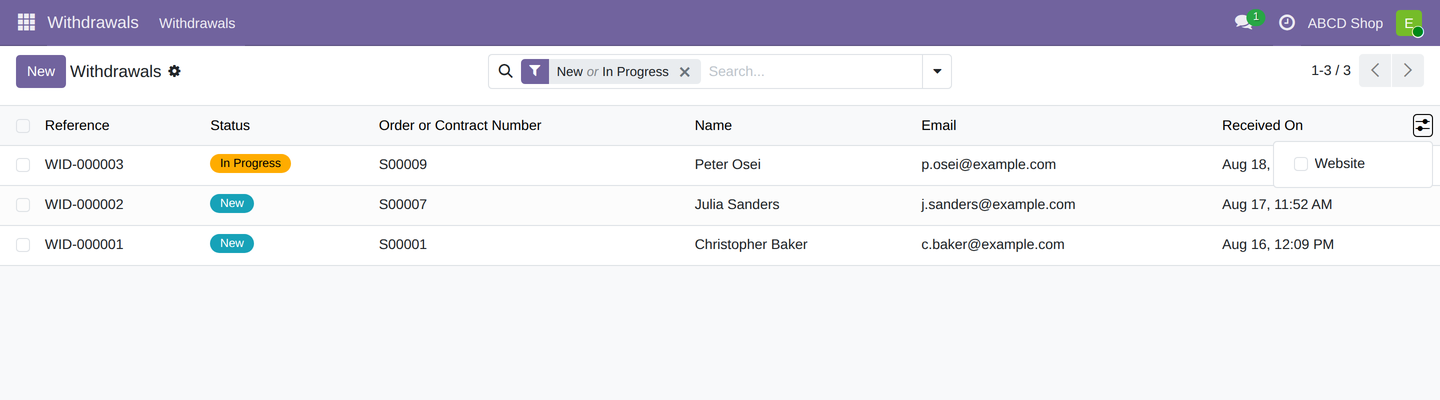
Open the Withdrawals menu. The list initially shows only cases with the status New and In progress — exactly the ones that need your attention. You can tell by the preselected New or In Progress filter in the search bar.
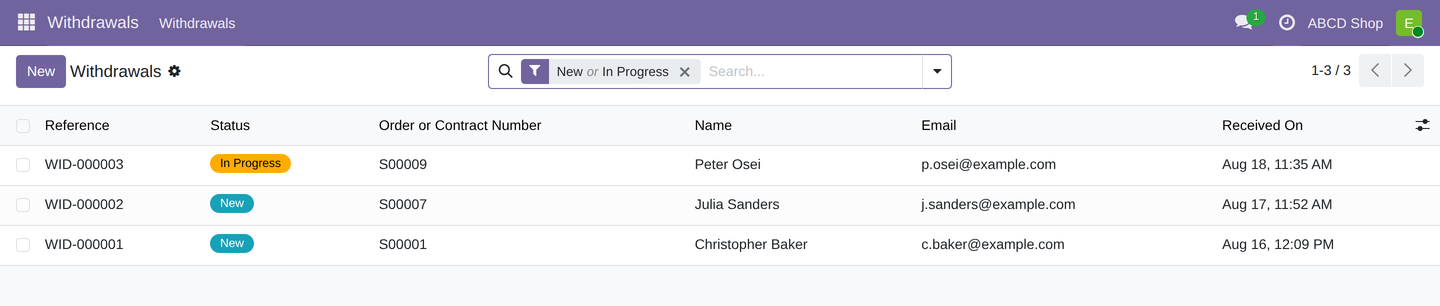
Cases that are done or rejected are hidden. To see them, remove the filter by clicking the ×. Click a row to open the case.
Search for a specific case
Type your search term into the Search… box. Odoo then offers you what to search in; searchable are Reference, Name, Email and Order or Contract Number. On the phone, the customer will usually give you one of these.
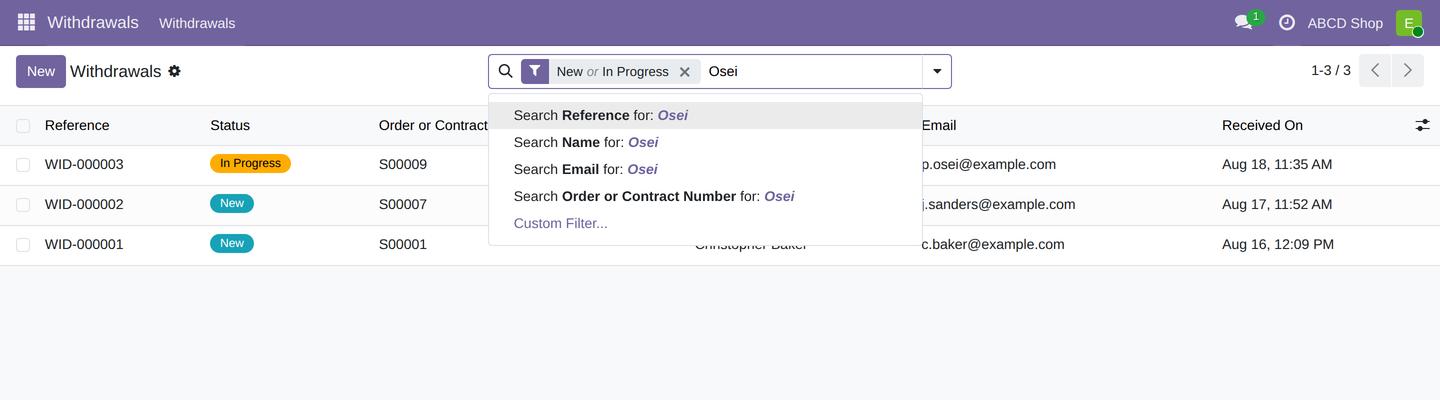
If the case you are looking for may already be finished, remove the New or In Progress filter first — otherwise you only search the open cases.
Filter and group
The arrow at the right-hand end of the search bar opens the menu with Filters and Group By.
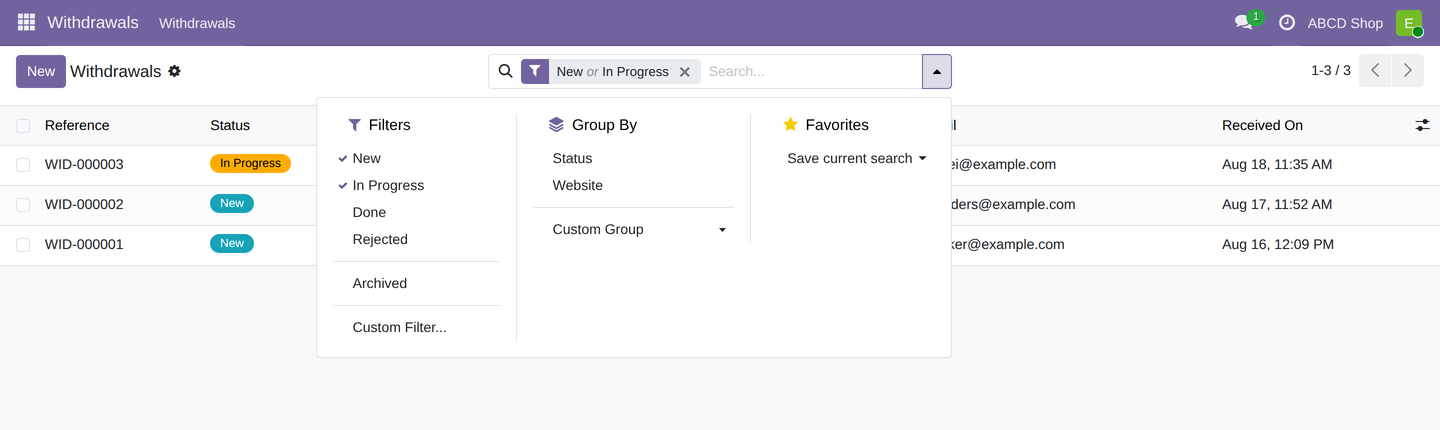
On offer are the four statuses as filters, the additional Archived filter, and the groupings Status and Website. Grouping by Website is worthwhile if you run several websites and want to see the withdrawals per shop.
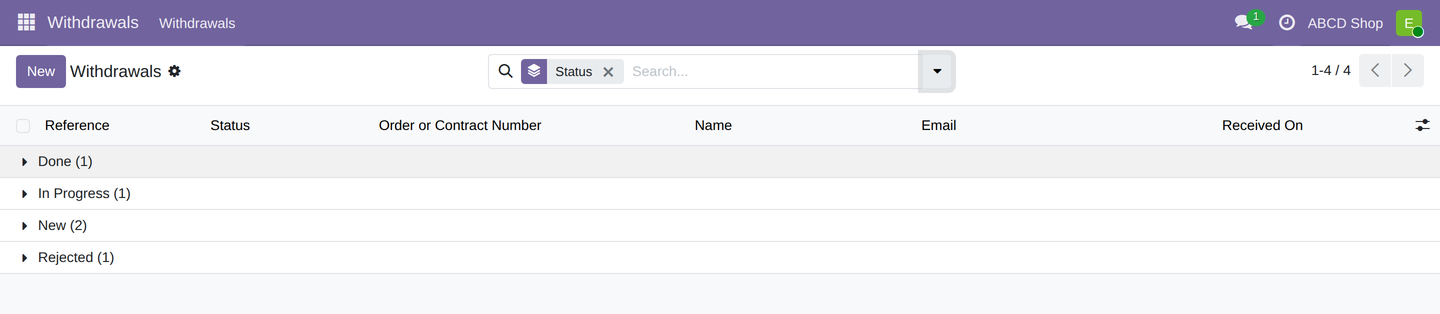
The Archived filter shows exactly those cases an administrator has archived — in the normal list view they are invisible.

Adjust the columns
Above the list on the right, the column-picker icon lets you show the additional Website column. It is hidden by default.
Read the reported details
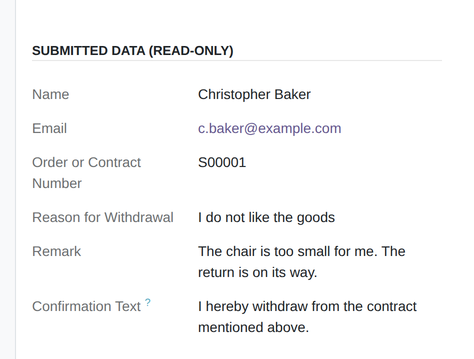
Under Submitted Data (read-only) you find what the consumer reported: name, email, order or contract number, reason for withdrawal, remark, and the confirmed text of the mandatory checkbox, which appears under Confirmation Text.
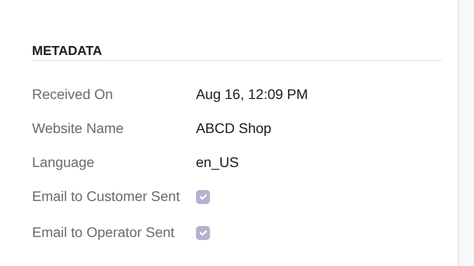
Metadata shows Received On, Website Name and Language, plus the two fields Email to Customer Sent and Email to Operator Sent, which indicate whether the confirmation emails went out. As soon as you complete or reject a case, Completed On or Rejected On appears there as well.
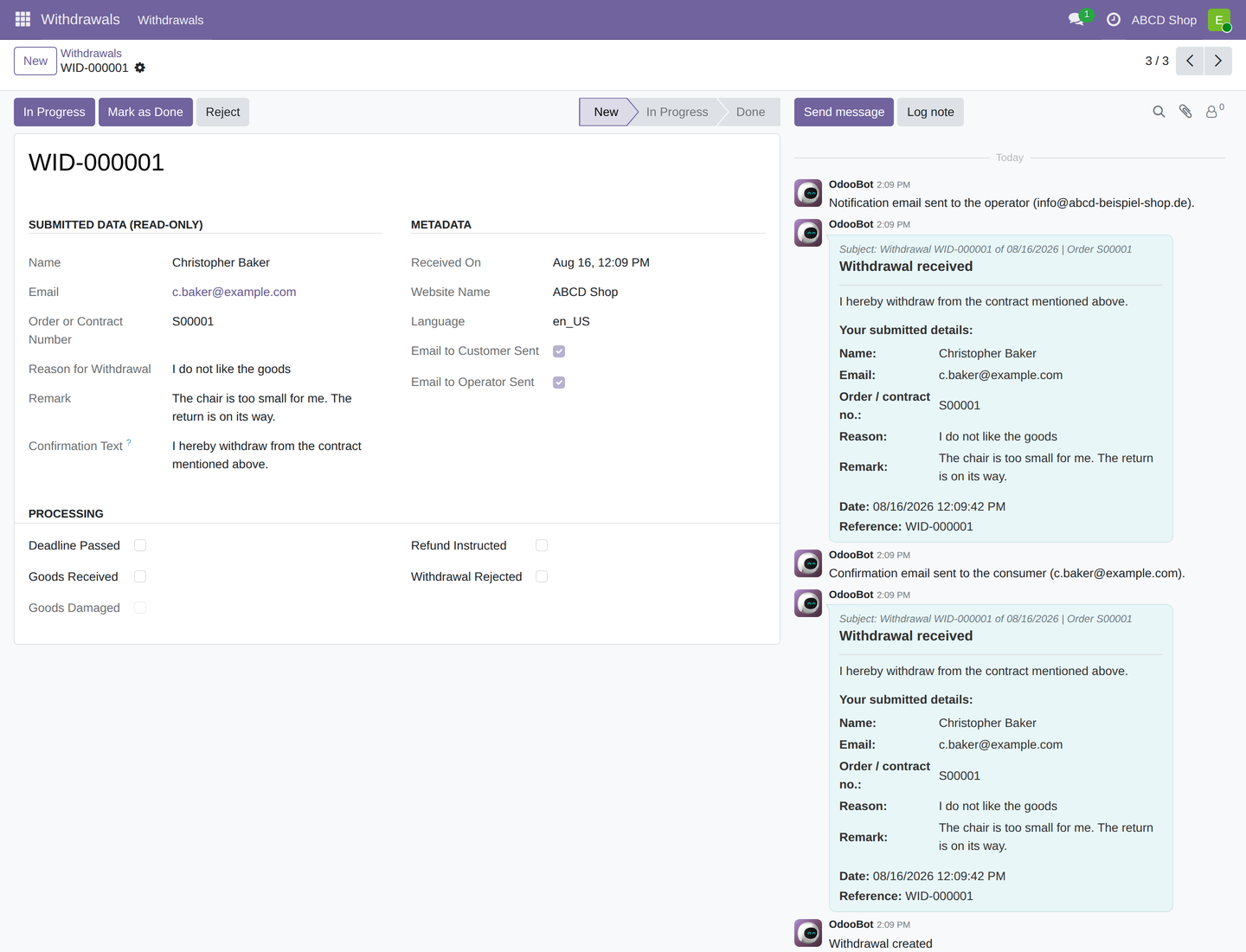
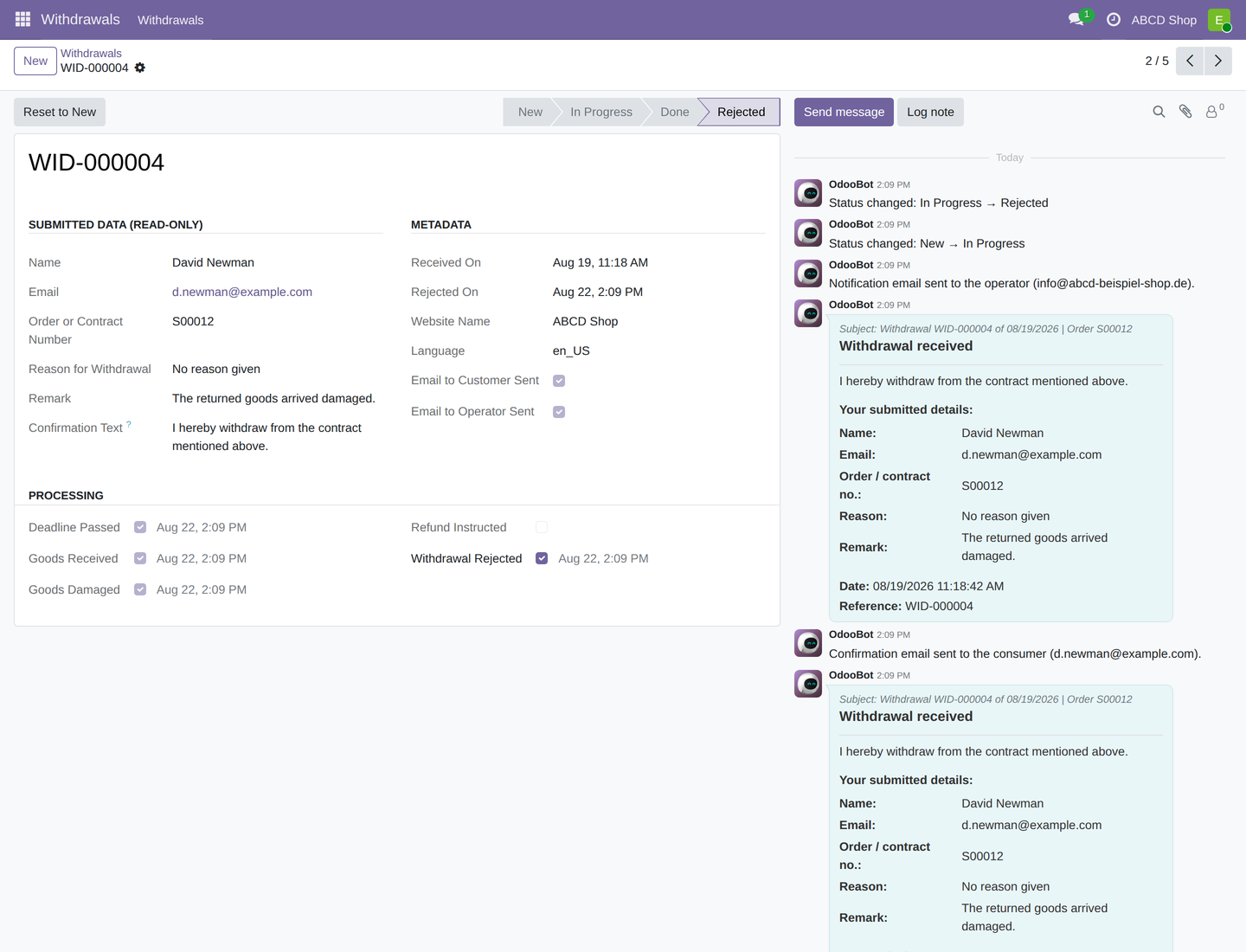
This is what the complete case looks like:
These details are read-only
You can read the reported details but not change them. What you can edit is the status, the processing steps, and the history. The website appears as plain text, not as a link.
The order or contract number is not checked against real orders. If it matches none, that is not an error — assess the case yourself.
Set the status
The status bar sits at the top right, the buttons to change it just left of it.

| Status | Meaning | How it is set |
|---|---|---|
| New | Just received. | Automatically, on receipt. |
| In Progress | You are working on it. | The In Progress button — or automatically, as soon as you tick Goods Received, Goods Damaged or Refund Instructed. |
| Done | Case closed. | The Mark as Done button. |
| Rejected | You do not accept the withdrawal. | The Reject button — or the Withdrawal Rejected checkbox. |
Reset to New resets a case if you need it. Every status change is recorded in the history with date and time.
Tick off the processing steps
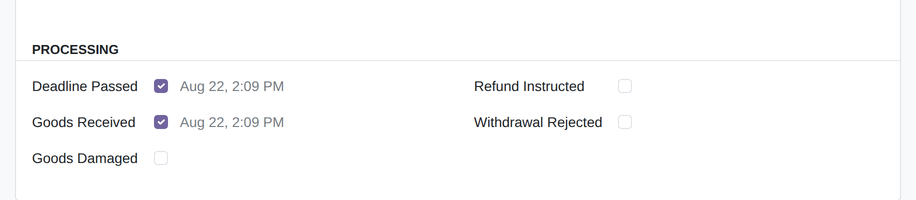
In the Processing area you record your progress with five checkboxes. Next to each ticked box, the date and time appear.
| Checkbox | What it means |
|---|---|
| Deadline Passed | In your judgement, the withdrawal period has expired. |
| Goods Received | The returned goods have arrived. |
| Goods Damaged | The returned goods are damaged. |
| Refund Instructed | You have initiated the refund. |
| Withdrawal Rejected | You do not accept the withdrawal. |
The system enforces three rules for you:
-
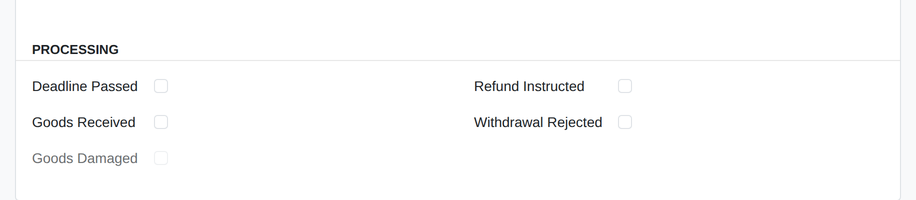
Goods Damaged can only be ticked if Goods Received is ticked. As long as it is not, the box is greyed out and cannot be clicked.
-
Refund Instructed and Withdrawal Rejected are mutually exclusive.
- Withdrawal Rejected sets the status to Rejected and locks all the remaining boxes. Boxes already ticked stay ticked — so you normally do not have to untick anything before rejecting. There is one exception: while Refund Instructed is ticked you cannot tick Withdrawal Rejected. Either untick the refund, or use the Reject button — that one still works in this case.
The box locks the case, not the status
Only the Withdrawal Rejected box locks the remaining boxes. If you reject a case with the Reject button, its status is Rejected but the boxes stay editable. To close the case for processing as well, tick the box in addition.
The date reflects the current state
Tick a box and the timestamp appears. Untick it and the date disappears with it. Nothing is lost: every tick and untick stays traceable in the history.
Ticking a box sends no email
The processing steps are purely your internal documentation. The customer never learns about them. To inform them, write to them actively — see the next section.
Send a message to the customer
- Open the withdrawal and click Send message at the bottom, in the history.
- The consumer's email address is already entered as the recipient.
- Write your text and send the message.
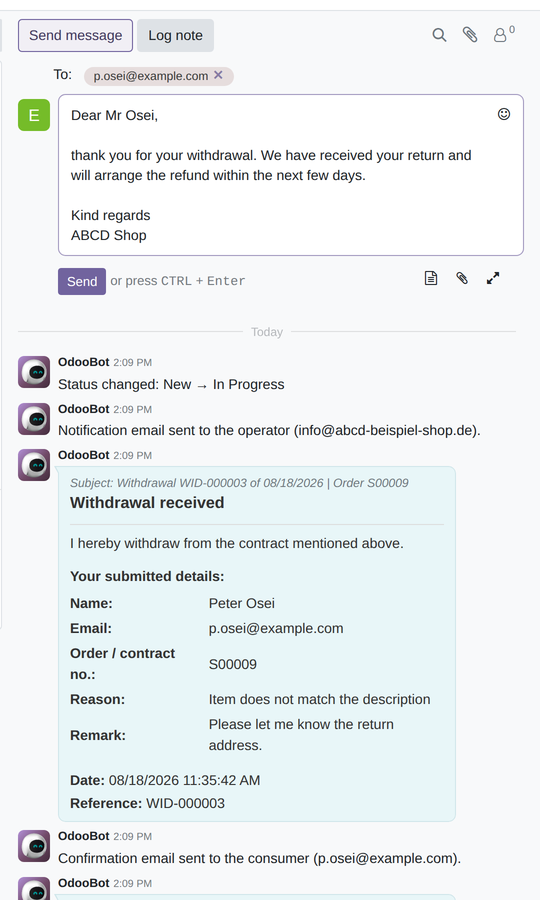
To see or adjust the subject, open the full editor via the four-arrow icon. The subject is
already there as a suggestion: "Your withdrawal of <date of receipt> for order
<order number>". You can overwrite it before sending.
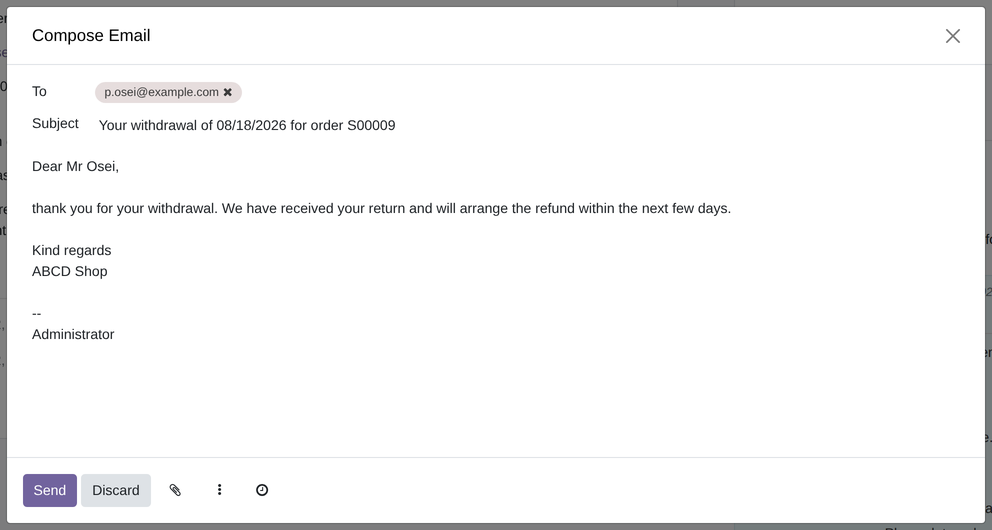
This message, too, is recorded in the history.
The history
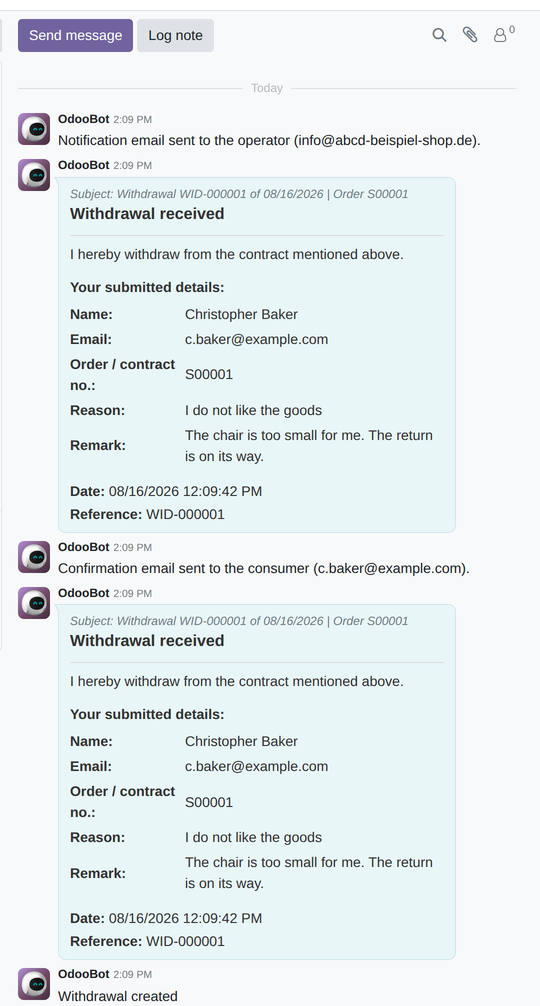
Below the form sits the history — your complete log. It shows, with date and time: every status change, every processing box ticked and unticked, every message sent, and the dispatch of both confirmation emails. If an email fails to go out, that appears here too.
What you are not allowed to do
As a Withdrawals User you may read and process cases. The following is not possible:
- Change the reported customer details. They are read-only. Even a misspelled email address can only be corrected by an administrator.
- Delete cases. Withdrawals you no longer need are archived, not deleted. That is done by someone with administrator rights.
Frequently asked questions
A withdrawal does not appear in the list. It is probably done or rejected, and therefore hidden. Remove the New or In Progress filter, or use the Archived filter.
I cannot tick a box. There are three possible reasons: you are trying to tick Goods Damaged without Goods Received; you are trying to tick Withdrawal Rejected while Refund Instructed is ticked; or the Withdrawal Rejected box is ticked, which locks every other box. Untick it to make the boxes editable again. The Rejected status on its own locks nothing.
Does the customer get an email when I tick a box? No. Only the two confirmation emails go out automatically. Everything else you write actively.
The order number matches no real order. That is possible and not an error. The form deliberately does not check the number.