Starting a customs declaration
Every export declaration hangs on a delivery. This page describes how to make a delivery customs-relevant and how the goods items of the declaration come about.
Mark the delivery as a customs declaration
- Open the Inventory app.
- Open the delivery order concerned.
- Check the Zollanmeldung (customs declaration) checkbox in the header area.
- Tick it if it is not ticked already.
The checkbox is ticked automatically when the delivery is created, provided the consignee's country differs from your company's country. You can tick or untick it at any time.
Note
The Zollanmeldung checkbox is only shown on outgoing deliveries. It does not appear on receipts, internal transfers or returns.
Important
If you tick the checkbox by hand, the module immediately tries to copy the amount, currency, delivery terms and the statistical values from the invoices belonging to the order. If no invoice exists yet, a message appears saying that no invoice is available. Either create the invoice first, or tick the checkbox and enter the affected data by hand later.
Validate the delivery
The Zoll tab only appears once the delivery is in the Done state. This is deliberate: only when the delivery is completed are the actually delivered quantities fixed, and only from those can reliable masses and items be derived.
- Record the delivered quantities as usual.
- Click Validate.
- The Zoll tab becomes visible and the Check Export File button appears in the header area.
Validating also does the following:
- the goods items of the declaration are rebuilt,
- the Referenznummer/UCR is assigned from a sequential number range, unless one exists already.
How the goods items come about
One goods item is created per combination of product, commodity code and country of production. Several delivery lines for the same product are therefore combined into a single item; their quantities feed jointly into the gross and net mass.
The commodity code, country of production, country of origin and federal state of origin are copied from the product, together with the masses multiplied by the quantity. The goods description comes from the Warennummern help data — the official German description for the commodity code; if there is no entry there, the product's Warengruppe Beschreibung is used instead. If default supporting documents are stored for the commodity code and country of production, they are created along with the item.
Important
If the product has no Warengruppe Nr., the goods item is still created — but without a commodity code. Validation then fails. Maintain the customs data on products before you export, or add the entries to the goods item by hand.
The Zoll tab
The Zoll tab is divided into several sub-tabs:
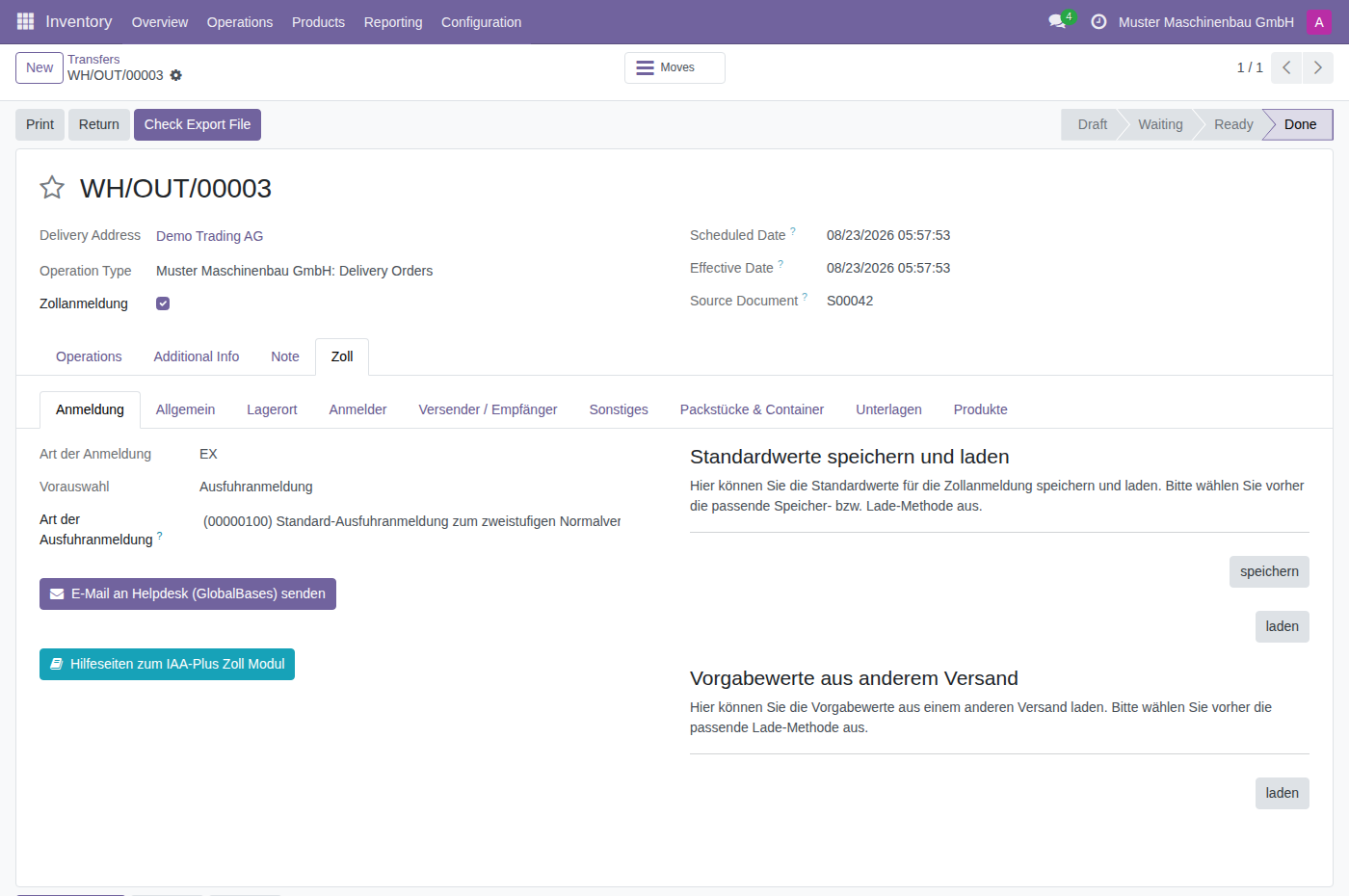
| Sub-tab | Content |
|---|---|
| Anmeldung (declaration) | Type of export declaration, saving and loading default values, help |
| Allgemein (general) | Countries, customs offices, presentation, security, masses, reference numbers |
| Lagerort (goods location) | Goods location and contact person at the goods location |
| Anmelder (declarant) | Declarant, exporter, subcontractor and their contact persons |
| Versender / Empfänger (consignor / consignee) | Consignor, consignee, supply chain actors |
| Sonstiges (other) | Delivery terms, invoice, means of transport, route |
| Packstücke & Container (packages and containers) | Packages and containers of the whole consignment |
| Unterlagen (documents) | Additional information, previous documents, supporting documents, references, transport documents |
| Produkte (products) | The goods items of the declaration |
The first eight are described under Entering header data, the last one under Entering goods items.
If the Zoll tab is missing
| Cause | Remedy |
|---|---|
| It is not an outgoing delivery | The customs tab is only intended for deliveries to customers |
| Zollanmeldung checkbox not ticked | Tick the checkbox and save |
| Delivery not yet Done | Validate the delivery |
| No permission | Check the permission level, see Access rights |