Entering goods items
You will find the goods items in the Zoll tab under Produkte. They are created automatically when the delivery is validated — initially one item per product. Several products sharing the same item key can then be grouped into one goods item and ungrouped again at any time.
The overview
The list shows, for each item:
| Column | Meaning |
|---|---|
| Warennummer | Statistical commodity code of the goods |
| Herstellungsland | Country of production |
| Eigenmasse | Mass excluding packaging, in kilograms |
| Rohmasse | Mass including all packaging, in kilograms |
| Produkt | The leading product of the item |
| Produkte | Number of products grouped into this item |
| Warnung | Filled when the item no longer matches its products' master data |
| Warnung Maßeinheit | Filled when the commodity code requires a supplementary unit but the quantity for it is missing |
| Bes. Maßeinheit | The supplementary unit for the commodity code. Can be shown via the column icon on the right |
At the right-hand end of every row there is an arrow icon labelled Produktdaten übernehmen (copy product data). Clicking it fetches the current customs data from the product master — for that one item. The button of the same name above the list does exactly this for all items at once.
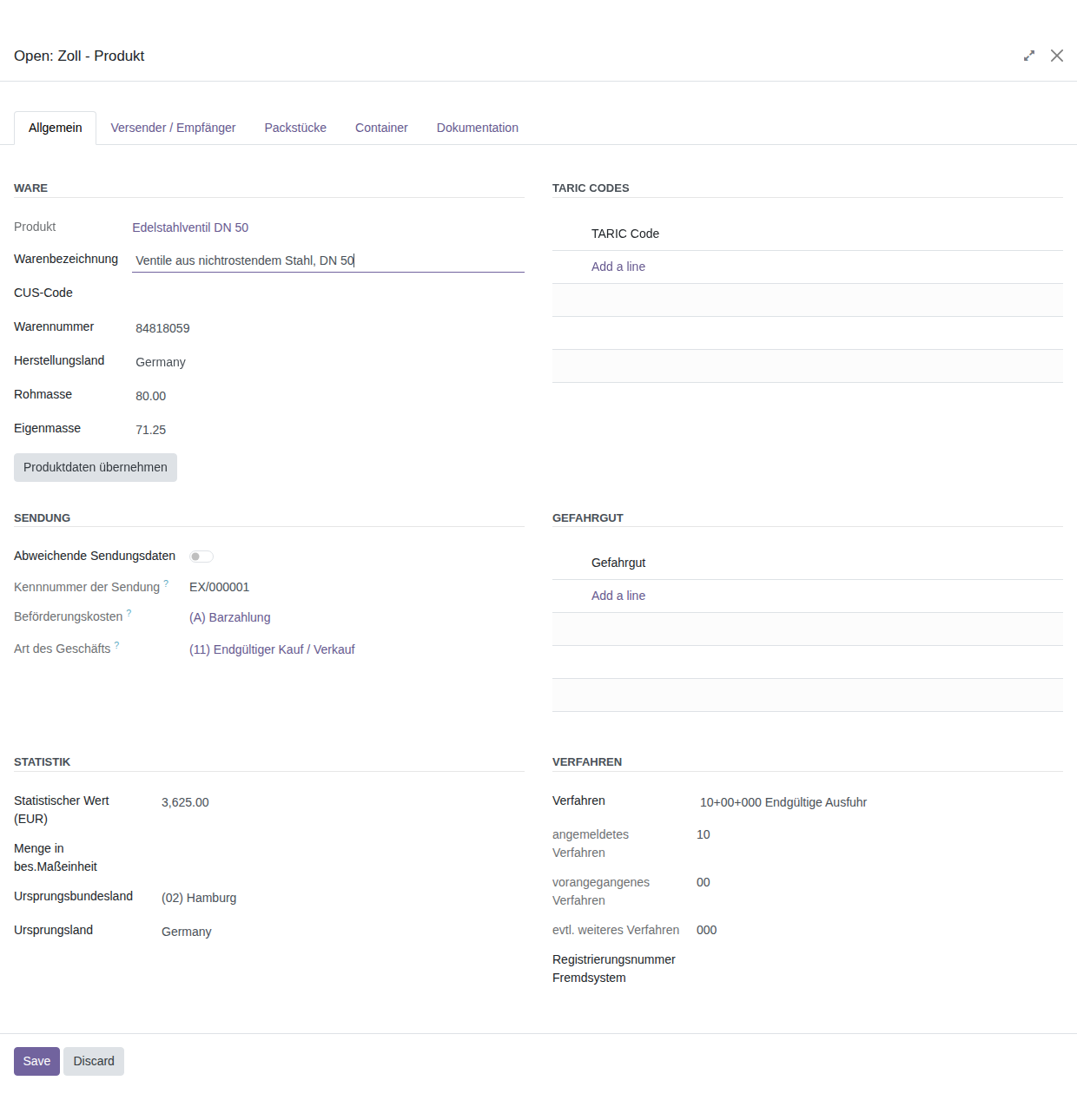
Opening a row brings up the Zoll / Angaben zum Produkt form with six sub-tabs.
Note
Gross and net mass are only editable if this was enabled in the base settings. If the manual total gross mass is additionally active on the declaration, the gross mass of the individual item is read-only — it then follows from the proportional distribution.
Sub-tab Allgemein (general)
Ware (goods) area
| Field | Meaning |
|---|---|
| Produkt | The underlying product. Not editable. |
| Warenbezeichnung | The description of the goods for the declaration. It is prefilled with the official German description from the Warennummern help data for the item's commodity code. |
| CUS-Code | Number for chemical substances and preparations, where applicable. |
| Warennummer | Statistical commodity code. |
| Herstellungsland | Country of production. |
| Rohmasse / Eigenmasse | Masses of this item in kilograms. |
The Produktdaten übernehmen (copy product data) button fetches the Warennummer, Warenbezeichnung, Herstellungsland, Ursprungsland and Ursprungsbundesland from the product master again. These are exactly the fields the pre-export check compares against the product master.
The Warenbezeichnung does not come from the product but from the Warennummern help data: the official German description for the product's commodity code is entered. Only if the commodity code cannot be found there — missing on the product, obsolete, or the help data not yet loaded — the Warengruppe Beschreibung from the product master is used instead.
Note
Gross and net mass are only recalculated if they are currently 0. Masses already
present stay unchanged — even if you have changed the weight on the product in the
meantime. In that case set the mass to 0 first and then click Produktdaten
übernehmen again.
Important
If no product is stored on the item — for instance on a line added by hand — clicking Produktdaten übernehmen produces an error message.
TARIC Codes area
Record the TARIC additional codes of the goods here.
- Click Add a line.
- Enter the TARIC Code.
Sendung (consignment) area
The Abweichende Sendungsdaten (differing consignment data) switch controls whether this item gets consignment data of its own.
- Switch off: the entries of the whole consignment are shown — Kennnummer der Sendung, Beförderungskosten and Art des Geschäfts from the header data. The fields are read-only.
- Switch on: you enter Kennnummer der Sendung, Beförderungskosten and Art des Geschäfts for this item yourself.
Note
Entries on transport charges and the consignment reference are permitted either at header level or per item, not both at once.
Gefahrgut (dangerous goods) area
Record the UN dangerous goods numbers of the goods here. Click Add a line and select the entry from the list.
Statistik (statistics) area
| Field | Meaning |
|---|---|
| Statistischer Wert (EUR) | Value of the goods at the German border. |
| Menge in bes.Maßeinheit | Quantity in the supplementary unit, where the commodity code requires one — a number. Which unit is meant is shown in grey next to it. |
| Ursprungsbundesland | Federal state of origin for German origin. |
| Ursprungsland | Country of origin. |
Tip
The statistical value is not taken from the product. The quickest way to fill it for all items at once is the Rechnungsdaten übernehmen button in the Sonstiges sub-tab of the header data.
Note
When you select an Ursprungsbundesland, the module automatically sets the
Ursprungsland to Germany — except for the entry with the code 99, which stands for a
non-German origin.
Next to Menge in bes.Maßeinheit, in grey, stands the unit the goods register requires for
this commodity code, for example St — Stück or 1 000 m3 — 1.000 Kubikmeter. It comes from
the Warennummern and Besondere Maßeinheiten help data and follows the commodity code
immediately when you change it. If the place stays empty, the commodity code requires no
supplementary unit; the mass alone is then enough for the declaration.
Verfahren (procedure) area
- Under Verfahren, select the requested customs procedure.
- The fields angemeldetes Verfahren, vorangegangenes Verfahren and evtl. weiteres Verfahren are then filled automatically and are not editable.
- Enter the Registrierungsnummer Fremdsystem if required.
Sub-tab Versender / Empfänger (consignor / consignee)
Here you record parties that differ from the header data.
| Switch | Effect |
|---|---|
| Abweichender Versender | Shows the consignor fields for this item |
| Abweichender Empfänger | Shows the consignee fields for this item |
| Abweichende Lieferkette | Shows the list of supply chain actors for this item |
- Turn on the switch you need.
- Select the company. TIN, Niederlassungsnr, Name and address are copied from the contact.
Important
Record consignor data either in the header data or per item. Entering it at both levels at the same time is not permitted and causes an error during validation.
Sub-tab Packstücke (packages)
By default the packages of the whole consignment apply. If this item differs:
- Turn on Abweichende Packstückdaten.
- Click Packstücke laden to copy the packages of the whole consignment as a starting point.
- Adjust the lines: Verpackungsart, Anzahl, Zeichen / Nummer.
Important
Packstücke laden replaces the existing lines of this item completely with the header entries. Click the button before you record lines of your own.
Sub-tab Container
The procedure matches that for packages:
- Turn on Abweichende Containerdaten.
- Click Container laden to copy the containers of the whole consignment.
- Adjust the Nummer per line.
Important
Container laden likewise replaces the existing lines of this item completely.
Sub-tab Dokumentation (documentation)
Here you record the documents relating to this goods item.
| Area | Fields per line |
|---|---|
| Vorpapiere | Vorpapier, Referenz |
| Unterlagen | Art, Referenz, Ausstellungsdatum, Gültig bis |
| Sonstige Verweise | Sonstiger Verweis, Referenz |
| Zusätzlich Informationen | Zusatzinfo, Description |
| Bewilligungen | Type of authorisation and Referenz |
If default supporting documents are stored for this item's commodity code and country of production, they are already entered when the item is created.
Note
In the Bewilligungen area the first column is labelled Sonstiger Verweis by mistake. Select the type of authorisation there anyway — the list contains the correct entries.
Sub-tab Zusammengefasste Produkte (grouped products)
The last sub-tab shows which product lines make up this goods item — per product with quantity and its share of gross mass, net mass and statistical value. For an item without grouping there is exactly one line.
For a group, the Cluster auflösen button sits above the list.
Refreshing the items
If the delivery changes after the items have been created, the Positionen aktualisieren button above the list brings them up to date: products newly added get their own item, products no longer delivered leave their item.
The button therefore works on the list of items. It does not touch the customs data of existing items — that is what Produktdaten übernehmen is for.
Note
Customs data already entered is preserved in full — including groupings. Masses are only
recalculated where they are still 0; masses you entered by hand are never overwritten.
Copying product data for all items
If the customs data has changed in the product master, the Produktdaten übernehmen button above the list fetches Warennummer, Warenbezeichnung, Herstellungsland, Ursprungsland and Ursprungsbundesland from the product master again for all goods items. It does for the whole list what the arrow icon does for a single row.
This also clears the Warnung column: it shows exactly those items whose data deviates from the product master, and the Check rejects the declaration as long as a deviation remains.
Note
Items without a product — lines added by hand — are skipped; the notification states how
many. Masses stay unchanged here too unless they are 0.
Important
A Warenbezeichnung you edited by hand is replaced by the official description for the commodity code — on a grouped item by that of the leading product.
Grouping goods items
If you ship several products sharing the same commodity code, you can group them into one goods item of the declaration. You decide which products belong together — out of seven products you may just as well form one group of four and one of three.
- Click Positionen zusammenfassen above the item list.
- The dialog lists every goods item of the delivery with its Positionsschlüssel (item key).
- Switch on the items that belong together.
- Fill in the details for the group.
- Click Zusammenfassen.
Which items may be grouped
Only items matching in all four characteristics may be grouped: Warennummer, Herstellungsland, Ursprungsland and Ursprungsbundesland. All four come from the product master and cannot be changed in the dialog. If they differ, the dialog refuses and names the items concerned.
Important
The commodity code alone is not enough. A goods item of the declaration is defined by its complete data set; country of origin and region of origin feed into the foreign trade statistics.
What the dialog asks for
These details cannot be derived from the product master. The dialog asks for them and applies them to the whole group:
| Field | Note |
|---|---|
| Warenbezeichnung | The description of the selected items is proposed, provided it matches. |
| Verfahren | The declared customs procedure. |
| CUS-Code | Only for chemical substances and preparations. |
| Menge in bes. Maßeinheit | The total across all products of the group — please work it out yourself. |
| TARIC-Zusatzcodes | The codes of all selected items, without duplicates. |
If the selected items already carry different values here, the field stays empty and a note states how many differing values were found. You then decide.
What happens to the data already entered
The line lists of the grouped items — TARIC codes, dangerous goods, packages, containers, supply chain, previous documents, supporting documents, other references, additional information and authorisations — are merged; duplicates appear only once. Gross mass, net mass and statistical value are summed across all products of the group.
Packages
If after grouping two package lines share the same packaging type and shipping marks but differ in quantity, both are kept. A note in the chatter points this out — please merge the lines by hand.
Products that must not be grouped
Goods whose description must contain details of the individual item may not be grouped with others. Such products are locked in the dialog and the reason is shown. This is controlled by the Warenbezeichnung individuell flag on the product — see Maintaining products for customs.
Ungrouping an item
A group can be split back into individual items at any time:
- Open the goods item.
- In the Zusammengefasste Produkte sub-tab click Cluster auflösen.
- Confirm the prompt.
The item form closes, the view is reloaded and the Produkte tab immediately shows all goods items again.
Each contained product becomes its own goods item again. All of them receive a complete copy of the customs data — procedure, TARIC codes, supporting documents, packages, containers and authorisations. Masses and statistical value are recalculated per product.
Important
Because the customs data is copied to every item, they all carry the same supporting documents including their reference numbers. If an export licence covers one specific product only, you must rework the remaining items. A note in the chatter states how many documents were copied.
When the supplementary unit is missing
If the commodity code requires a supplementary unit, the Menge in bes.Maßeinheit must be filled. If it is missing, the module shows a warning — in the Warnung Maßeinheit column of the item list and as a notice at the top of the item form:
Die Warennummer 31022100 verlangt eine Menge in kg N — Kilogramm Stickstoff (Chemie).
The Check rejects the declaration as long as the quantity is missing. Enter it in the Statistik area of the item form. If you change the commodity code, unit and warning follow immediately.
When master data no longer matches
If the product master changes after a goods item has been created, the item no longer matches the goods. The module then shows a warning — in the Warnung column of the item list and as a notice at the top of the item form, for example:
Laptop 15 Zoll: Warennummer im Stamm 85285200, Position 84713000
The Check validation refuses the declaration for as long as such a deviation exists. Correct the item by hand or fetch the master data again via Produktdaten übernehmen.
Next steps
Once all items are complete, move on to validation: Checking and exporting.